 Avg. 9 min read
 Supplying Content Data
Contents
- Introduction
- Categories
- Site pages
- Blog posts
- Brands
- Available shop integrations
- Providing content data
- Recurring content feed
- Manual content upload
- XML format
- CSV format
Introduction
For Hello Retail Search to index and return your content, we need metadata for the content on your webshop. Each content item must have a title and a unique URL. We also recommend adding a description, keywords, and a hierarchy where relevant.
Currently, our system distinguishes between these content types:
- Categories
- Site pages
- Blog posts
- Brands
Categories
Categories represent product groupings in your shop, such as "Shoes" or "Shoes for men".
"Men's shoes" can be a subcategory of "Shoes", so categories can form a hierarchy.
A category typically includes:
- Title
- URL
- Hierarchy
Site pages
Site pages are informational pages in your shop, such as "Opening hours" or "Contact us".
A site page typically includes:
- Title
- URL
Blog posts
Blog posts are editorial or informational content related to your shop, such as "Wooden shed DIY" or "Protein pancake recipe".
A blog post typically includes:
- Title
- URL
Brands
Brands are focused on the product brands that your shop offers.
A brand typically includes:
- Title
- URL
Available shop integrations
Before proceeding, review the integrations below. If you are on one of these platforms, skip creating a feed. Follow the guide for your platform and continue to the "supplying your feed to Hello Retail" step:
- Categories
- Site pages
- Blog posts
- Brands
- Site pages, Blog posts, and Brands are new content types in our system. Current extensions and plugins do not provide these feeds out of the box.
Note
Our integrations are updated regularly. Ensure you are using the latest version. For questions, contact support@helloretail.com.
Providing content data
There are two ways to provide Hello Retail with content data:
What is a feed?
A feed is a file that contains a list of entries for a specific content type. Here is an example.
Recurring content feed
If your platform is not listed in Available shop integrations, you must provide the feed yourself.
A recurring feed is a URL that Hello Retail fetches on a schedule to synchronize your content. Keep the feed updated and accessible at a stable URL, for example: https://www.yourdomain.com/feeds/categoryfeed.xml
With a recurring feed, you do not need to log in and upload a file every time you update content.
Your content feed can be XML, CSV, or JSON.
To provide a recurring content feed:
- Log in to your Hello Retail account.
- From the dashboard, go to the left-hand menu. Under Configuration, click Data Setup to expand the menu.
- Click Contents.
- Click Set up automatic content synchronisation and choose the content type.
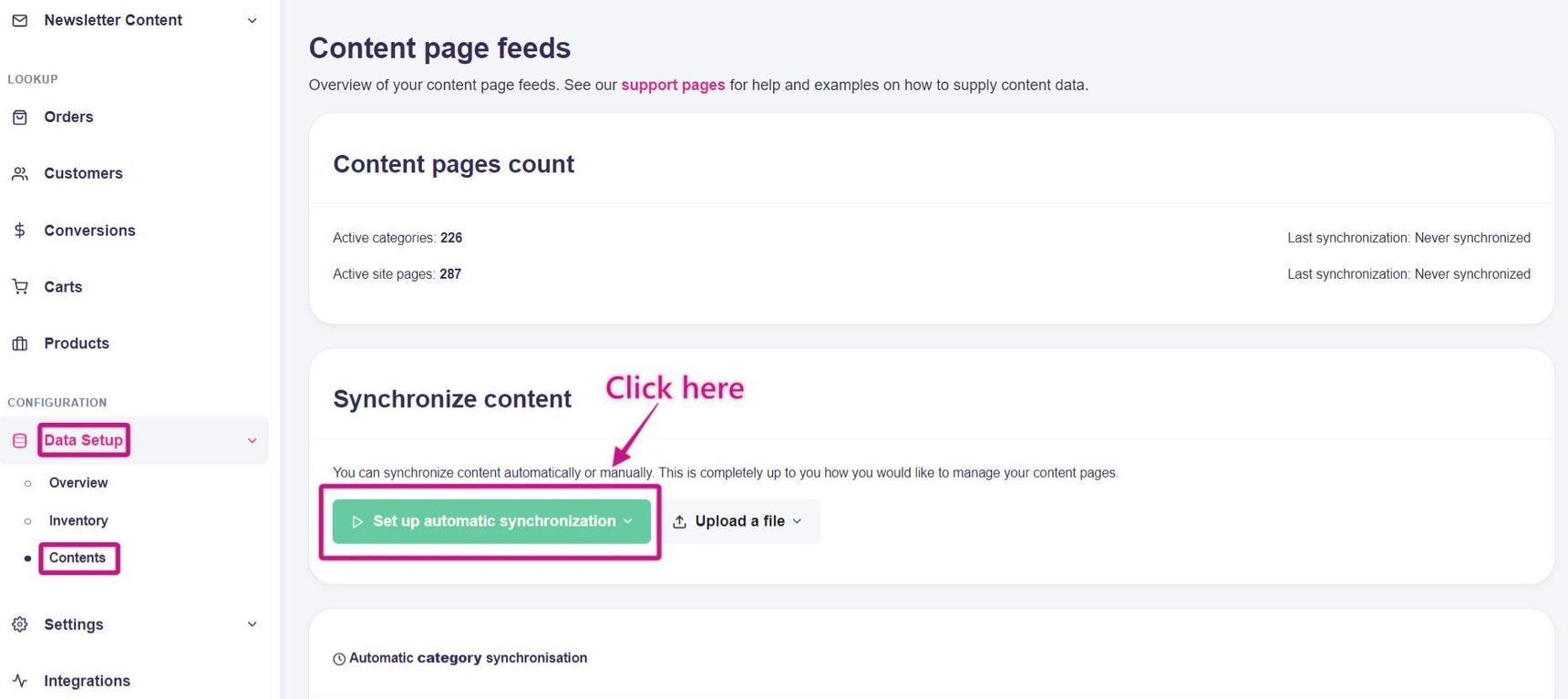 This picture shows steps 2, 3 and 4.
 - Alternatively, select an existing content feed on the page and click Edit to change it.
- On the next page, choose the shop platform used by your store. If it is not listed, choose Other.
- Fill in the requested information, including the public feed URL.
- Contact support@helloretail.com and we will configure the scheduler to fetch your feed regularly.
Using Google Sheets to set up the content feed
You can also provide a Google Sheet with at least the title and url. We can then help you set up a recurring content feed.
The sheet must be structured in columns and include at minimum one column for titles and one column for URLs, for example:
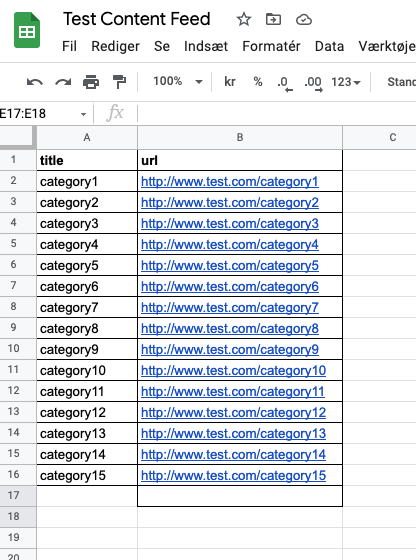
This image shows an example of how to set it up in Google Sheets with content categories for title and url.
Optionally add more columns such as description, keywords, hierarchy. More fields generally improve search relevance.
How to share the Google Sheet link with Support Hello Retail
For our feed reader to access your Google Sheet, set the sheet to public/global access so that anyone with the link can view it. This is defined under "General access".
How to open and use the Inspect tool in three different browsers; Google Chrome, Mozilla FireFox and Apple's Safari the Inspector on Windows
Google Chrome:
- In the top menu, select View > Developer > Developer Tools.
- Click the three-dot menu in the top right, then choose More Tools > Developer Tools.
- Use the shortcut Ctrl+Shift+C on Windows or Command+Option+C on macOS.
Learn more about inspecting network activity in Chrome here.
Mozilla FireFox:
- In the top menu, select Tools > Web Developer > Inspector.
- Use the shortcut Ctrl+Shift+C in Windows or Command+Option+C in macOS.
Learn more about inspecting network activity in Firefox here.
Apple's Safari:
- In the top menu, choose Develop > Show Web Inspector.
- Use the shortcut Command+Option+I.
Learn more about inspecting network activity in Safari here.
Copy the export link from the Network tab in Inspector
-
Open the Google Sheets file in your preferred web browser.
-
Open the Inspector tool in your browser.
-
If needed, click Clean so the network log is not cluttered with previous requests. Clicking any control in the sheet will create new entries in the network log. This helps with steps 4 and 5.
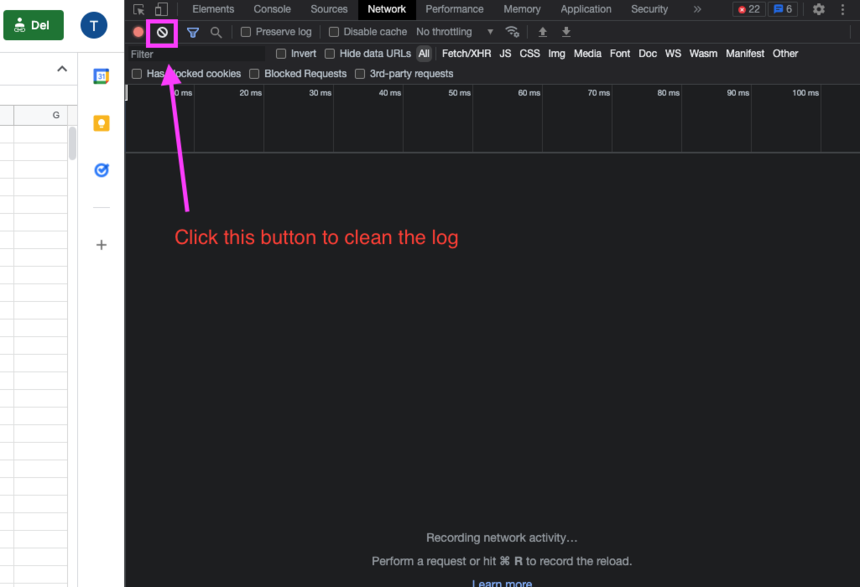
-
In Google Sheets, go to File in the top menu, click Download, and choose .csv.
- In the Inspector, a new request appears in the network log that looks like:
As soon as you click Download, this link appears in the Inspector.
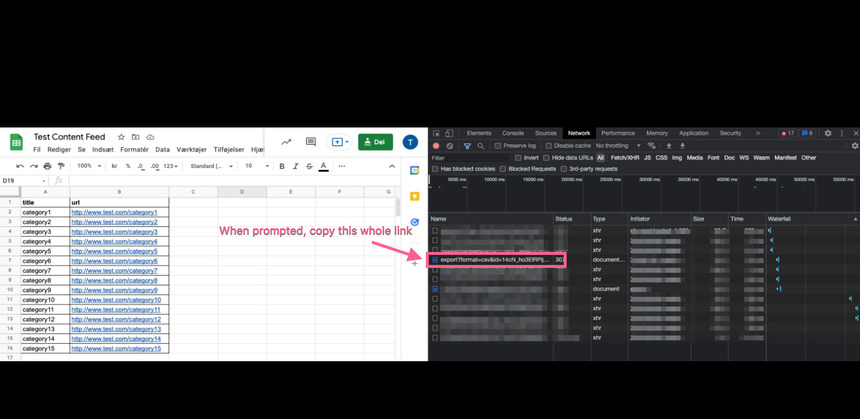
This image shows an example of where to fetch the link that needs to be copied from Inspector on Google Chrome from the Google Sheet.
6. Copy the full link and send it to Support at support@helloretail.com. We will set it up for you.
Manual content upload
A manual content upload is a quick way to get started when your shop does not have a content feed available.
The upload file format must be CSV.
Note
A manual content upload overrides all existing content of that type.
To provide a manual content upload:
- Log in to your Hello Retail business account.
- From the dashboard, go to the left-hand menu. Under Configuration, click Data Setup to expand the menu.
- Click Contents.
- Click Upload a file.
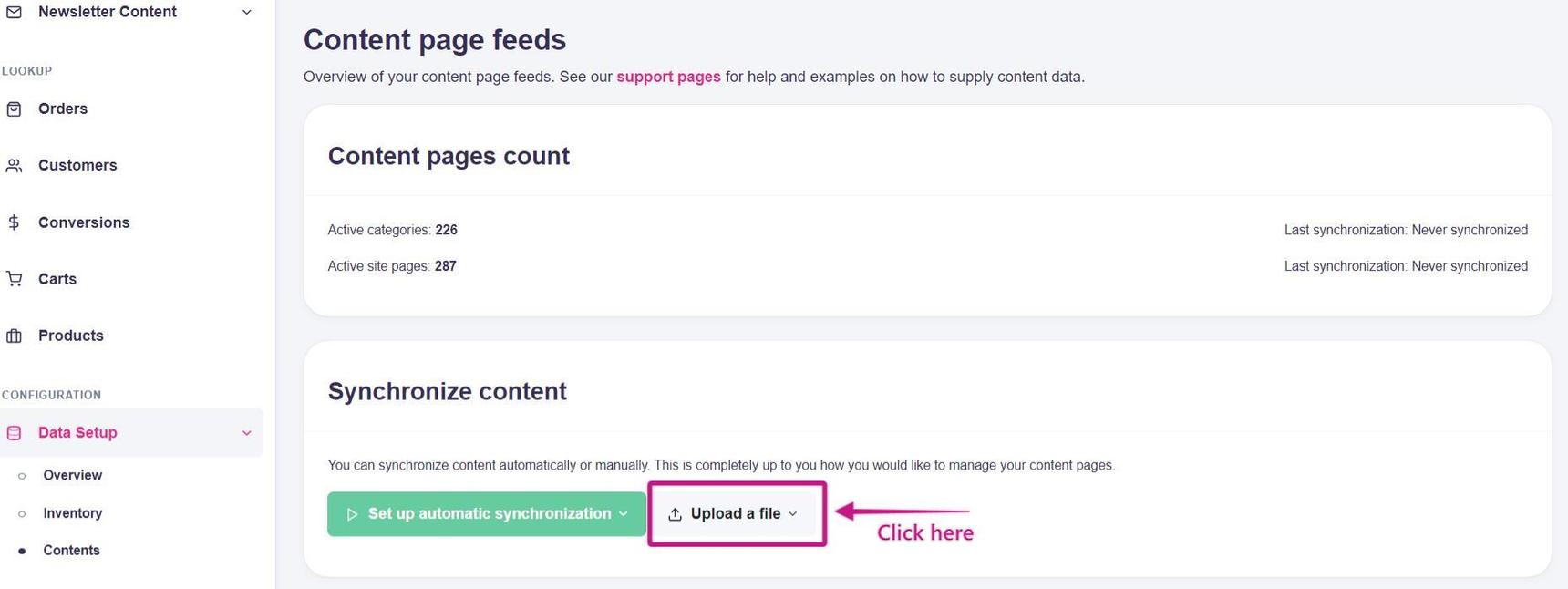
This picture shows step 4.
5. Choose the content type from the drop-down: Categories, Site pages, Blog posts, or Brands.
6. After choosing the content type, a file selection field appears. Click Browse, choose your file, and then click Upload.
7. Wait for the file to process.
XML format
Below is an example structure of a category XML file:
<categories>
 <category>
  <title>Summer dresses</title>
  <url>https://mysite/summer-dresses</url>
  <description>We have the best summer dresses in the world</description>
  <keywords>Sundress One-piece</keywords>
  <hierarchy>
   <category>Woman</category>
   <category>Dresses</category>
   <category>Summer dresses</category>
  </hierarchy>
 </category>
 <category>
  <title>Autumn dresses</title>
  <url>https://mysite/autumn-dresses</url>
  <description>We have the best summer dresses in the world</description>
  <keywords>Sundress One-piece</keywords>
  <hierarchy>
   <category>Woman</category>
   <category>Dresses</category>
   <category>Autumn dresses</category>
  </hierarchy>
 </category>
</categories>
Note
A hierarchy is a structured list of a category and its parent categories, similar to breadcrumb navigation such as "Woman > Dress > Summer dresses". Include the current category, not only parent categories.
CSV format
The delimiter of the CSV file must be:
The column structure of the CSV file must be in this fixed order:
Below is an example structure of a category CSV file:
Category title; http://example.com/categories/1/2/3; category hierarchy 1, category hierarchy 2, category hierarchy 3; keyword1 keyword2; This is an example description
Baby sandals; http://example.com/shoes/baby/sandals; Shoes, Baby, Sandals; baby shoes sandals babies boy girl; Category containing the most beautiful sandals for your baby