 Avg. 2 min read
 Post Conversion Design - Triggered Emails
In this guide, you will design the post-conversion Triggered Email. You should already have a base design. You can see how to create it here. When the base design is complete, continue with this guide.
Create new default post conversion design
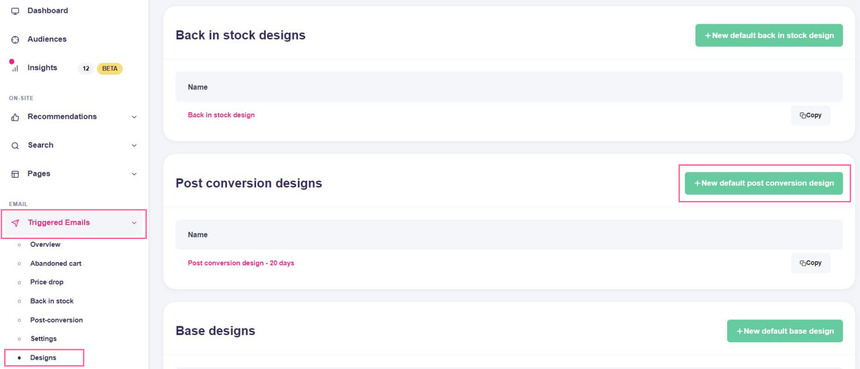
- Start by logging into your Hello Retail account. In the left-hand menu, go to Email, then select Triggered Emails to expand the menu.
- From the drop-down, click Designs.
- Click the New default post conversion design button.
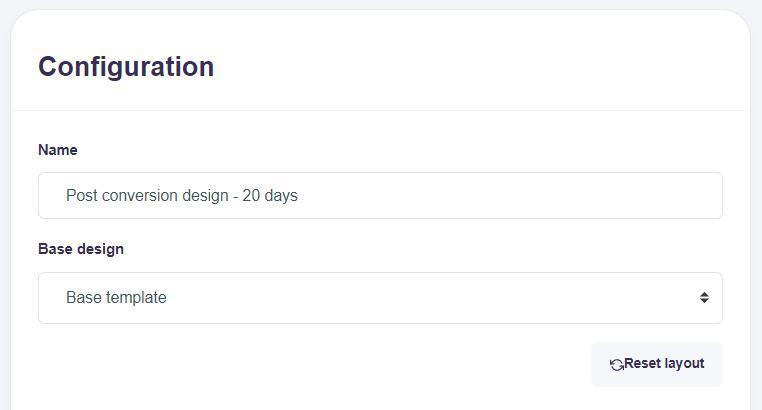
Name and base design
Enter a name for the design and choose the base design you want to use. Many accounts have a single base design.
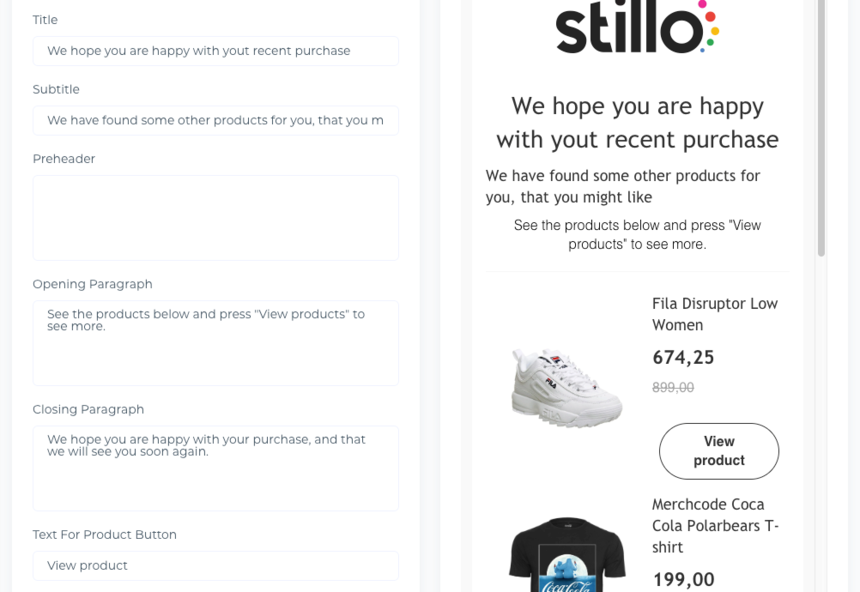
Text boxes
Fill out the text boxes to control the content of the email. If your site uses a specific tone or style, adjust the copy to match your brand voice.
Vouchers
If your shop system supports vouchers, you can include a voucher in the email. Insert the voucher and add a short explanation for the recipient.
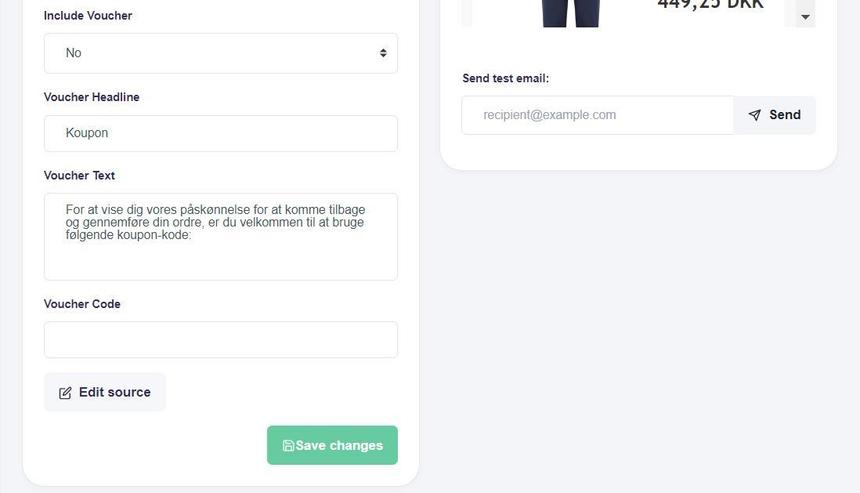
Finalizing the setup
Save your changes when you are happy with the post-conversion content. You can edit the code for advanced customizations. If needed, click Reset layout at the top to revert to the default.
Check the final result by sending a test email.
Now that the design is ready, you can set up the trigger that defines when the email is sent. Learn more about how to set up the abandoned cart trigger.
If you are in the process of setting up other trigger designs, you can find more guides here: