 Avg. 2 min read
 Price Drop Design - Triggered Emails
In this guide, we will go through the design for the price drop triggered email. You should already have a base design—see how here. If you have already made a base design, you are good to go.
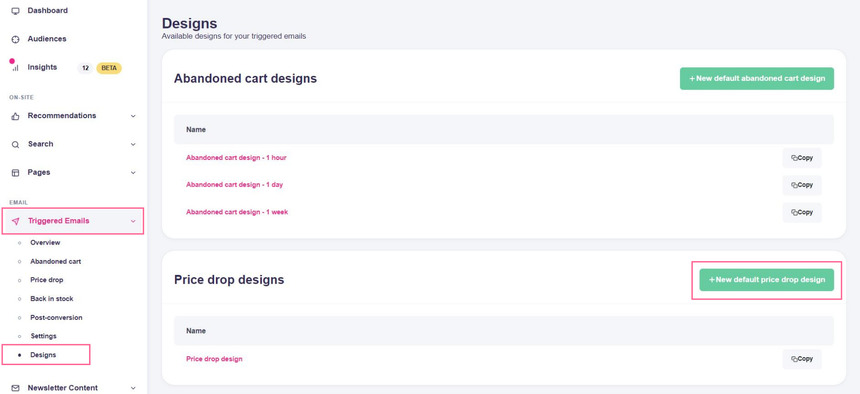
Navigate to Triggered Emails > Designs and click New default price drop design.
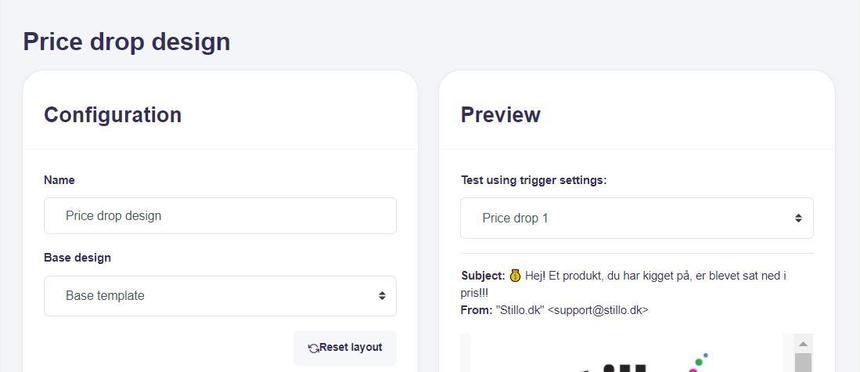
Enter a name for the design and select the base design you want to use. You might only have a single base design.
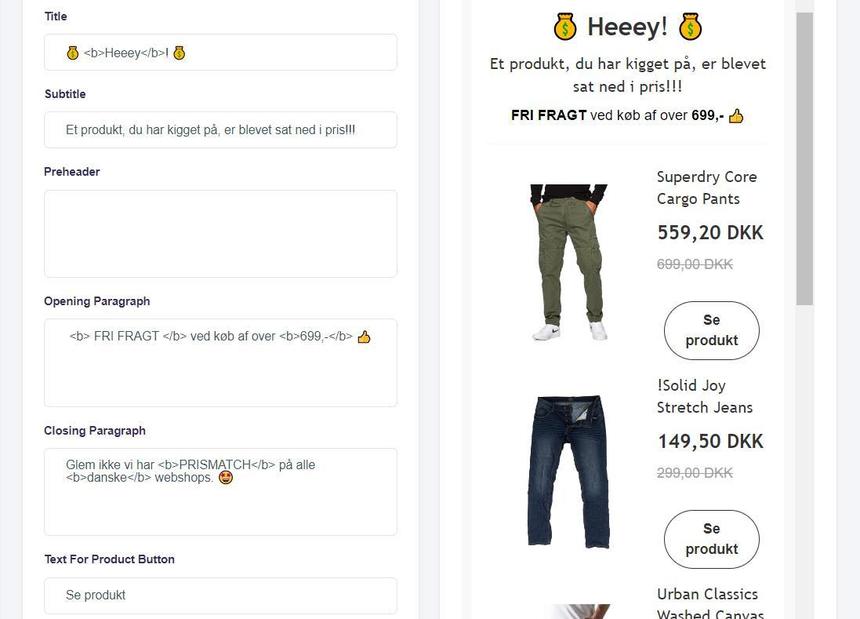
Now fill out the text boxes. Customize the copy so the email matches your site’s communication style.
The price drop email also includes related products tied to the discounted items. Write a brief introduction for this section.
If your shop system supports vouchers, you can include them in the email. If you do, insert the voucher and add a short explanation.
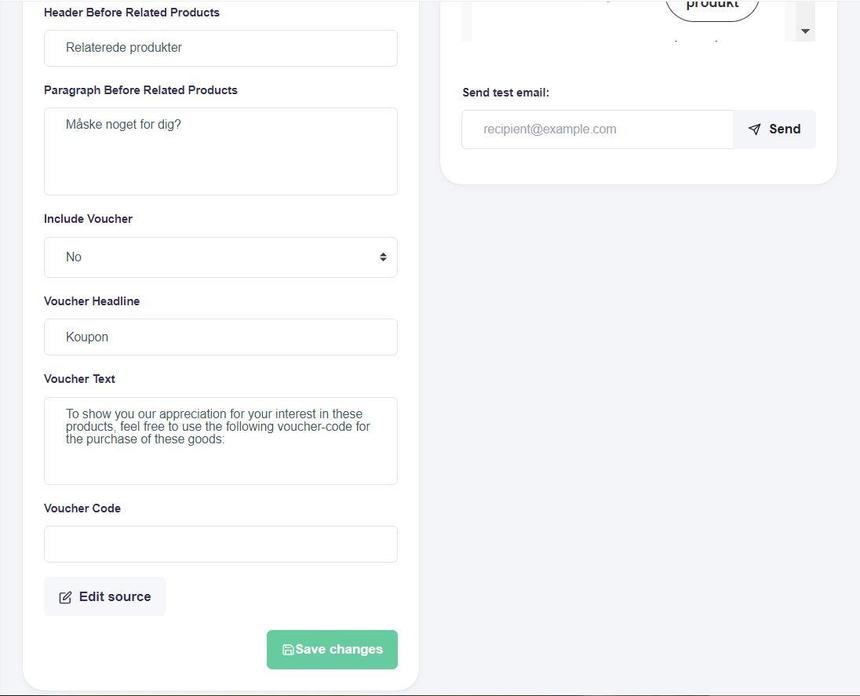
Save the changes when you are happy with the price drop content. You can also edit the code if you need more advanced customization. If something goes wrong, you can revert to the default by clicking Reset layout at the top.
You can check the finished result by sending a test email.
Now that the design is ready, you can set up the trigger defining when the email will be sent. Learn more about how to set up the abandoned cart trigger.
If you are in the process of setting up other trigger designs, you can find more guides here: