 Avg. 2 min read
 Setting Up the Price Drop Trigger
This guide shows how to configure the Price Drop trigger in Triggered Emails.
Steps on How to Set Up the Price Drop Trigger
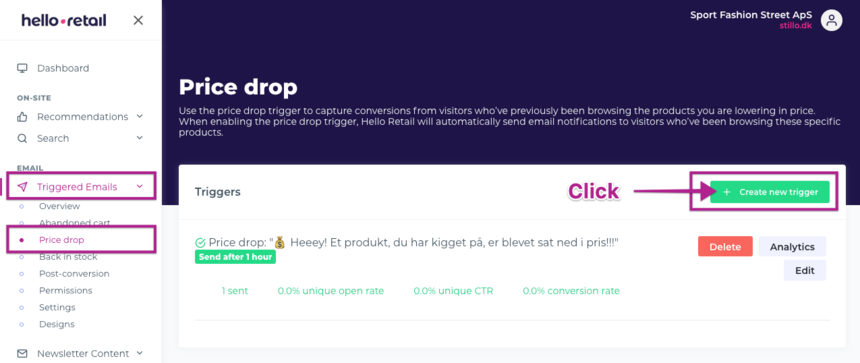
- Start by logging into your Hello Retail account. On the dashboard, go to the left-hand menu. Under Emails, click Triggered Emails to open the drop-down menu.
- Next, from the drop-down menu, click Price drop.
-
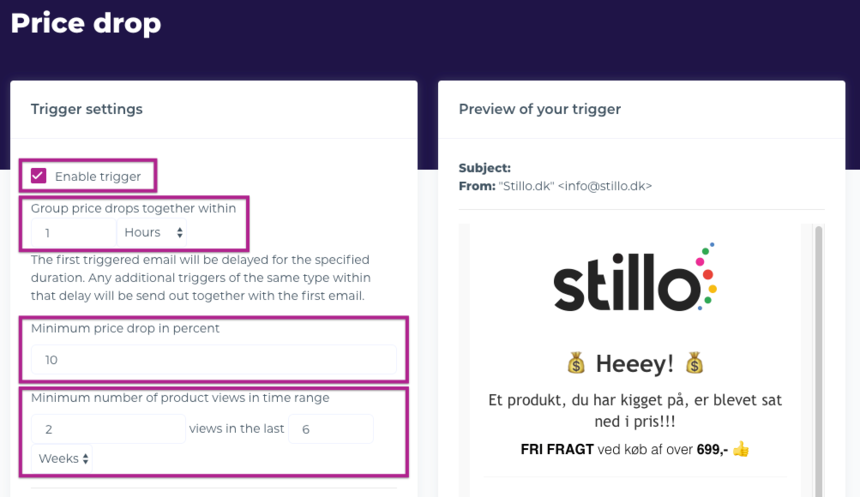
Enable the trigger and specify when the email should be sent.
Configure the rules for sending notifications. Set the minimum percentage the price must drop to trigger an email, the lookback timeframe, and the minimum number of times the customer must have viewed the product in your webshop.
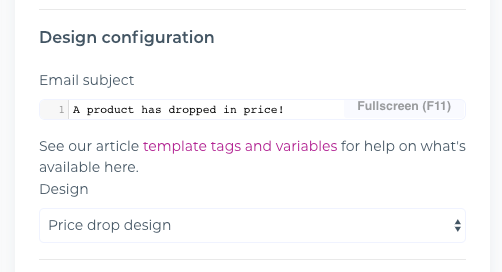
 4. Specify the subject line and choose the email design or template.
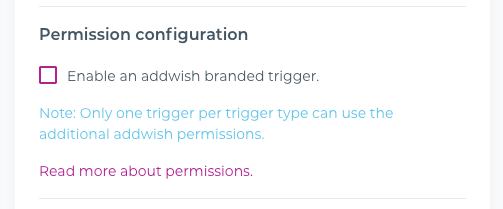
5. Configure permission settings, where you can choose to send the Hello Retail branded trigger.
6. Optionally, include additional related products in the email alongside the products with a price drop.Choose how many related products to show and define the selection rules.
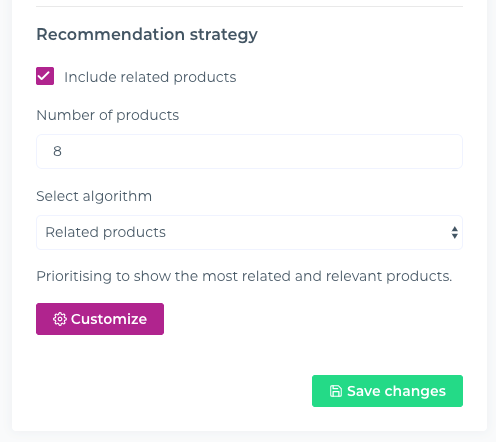
7. Finally, click Save. The Price drop trigger is now active.
Note
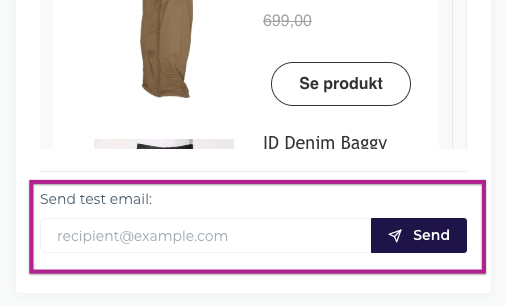
To preview the email, send a test email to your inbox from the editor. The preview uses your current template, subject, and product rules.
If you have any questions about this guide, then please contact Support or your designated Account Manager about this.