 Avg. 2 min read
 Synchronizing Permissions
Note
US businesses selling to US companies can enable Skip permissions when configuring a Triggered Email. When enabled, Hello Retail bypasses permission checks.
To allow Hello Retail to send emails to customers on your behalf, it's important to synchronize your email marketing permissions.
Note
Synchronize your permissions regularly to keep them current. Up-to-date permissions improve eligibility and performance for Triggered Emails.
Here's a step-by-step guide on how to synchronize your permissions:
- Log in to your newsletter or email marketing provider (for example, Mailchimp) and export a CSV file with all permissioned email addresses.
- When the CSV file is ready, go to Data Setup > Permissions in Hello Retail and click Choose file. Select your CSV file from disk.
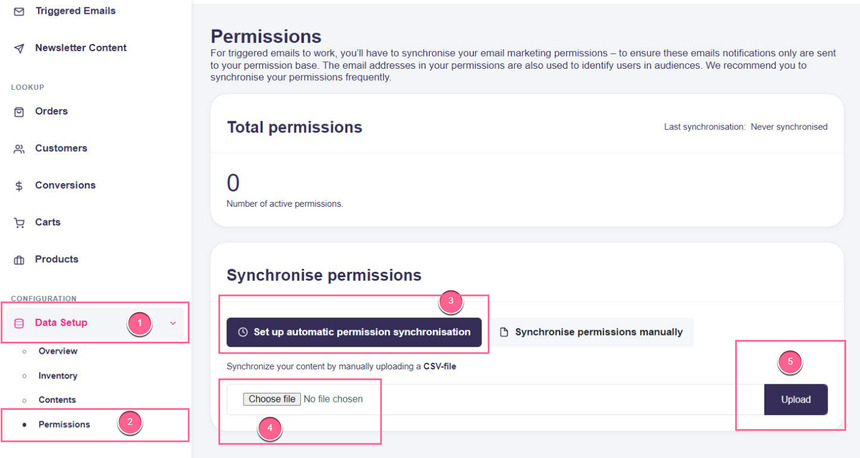
- Wait for the import to complete.
- After the import completes, review the status of the synchronized email permissions.
CSV file format
The CSV file must contain only valid email addresses, one email per line. No header row is required.